

When I first heard about Rank Math AI Link Genius in the first week of March, it quickly caught my attention. It created a big hype in the SEO industry, especially among WordPress users.
At first, I thought it was just another internal linking feature. But after trying it, I realized it’s a complete AI-powered internal link building tool.
Internal linking has always been time-consuming for me. I had to manually find pages and add links, which slowed down my workflow.
But with Link Genius, Rank Math made this process much easier and faster. It helps automate internal linking in a smart way, directly inside WordPress.
What is the Rank Math AI Link Genius Tool?

Rank Math AI Link Genius is a smart internal linking tool built for WordPress users. It helps you automatically find and add relevant internal links across your website.
Instead of manually searching for pages to link, it uses AI to suggest the best linking opportunities. This saves time and makes your content more connected.
From my experience, it also shows link health, broken links, and linking structure in one place. This makes managing internal links much easier and more organized.
How to Enable Rank Math AI Link Genius Features
Rank Math Link Genius is a paid feature. To use these features, you have to purchase a premium plan to go with the Rank Math Link Genius tool.

At first, you have to go to the Rank Math Official website, then you have to click on the “Download For Free” button to go to the Rank Math Pricing plan page.

Rank Math offers 3 pricing plans for their paid user: Pro Business, and Agency.
Pro plan starts at $7.99/month, Business Plan starts at $24.99/month, Agency plan starts at $54.99/month, and the best part is that AI Link Genius features are available on all the premium plans.
So, you have to choose any of the plans based on your requirement and click on the Buy Now button to buy their premium package.

After purchasing their premium plan, you have to log in to the Rank Math Account, click on the “Download” button to download the pro version of RankMath.
After downloading, you can install it on your WordPress website by following these simple steps:
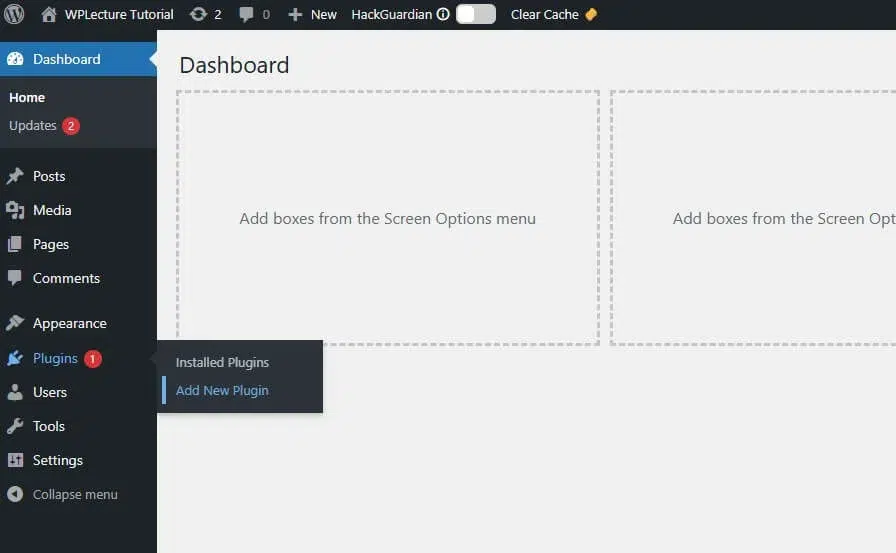
When the download process is complete, then you need to login to your WordPress dashboard and hover on plugins and click on Add New Plugin.
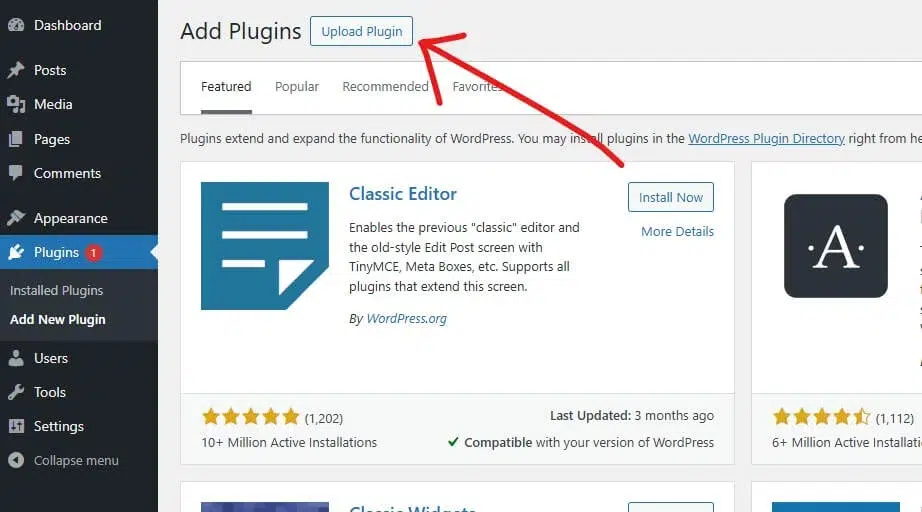
Then, this page will open. Now you need to click on the Upload plugin text.
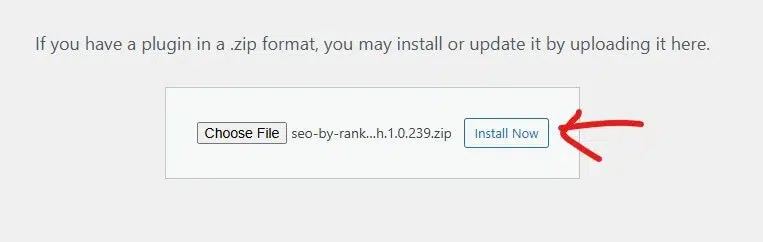
Now, you need to drag and drop the RanMath plugin or choose the plugin for installation. After choosing the Rankmath SEO plugin, you need to click on the Install Now button.
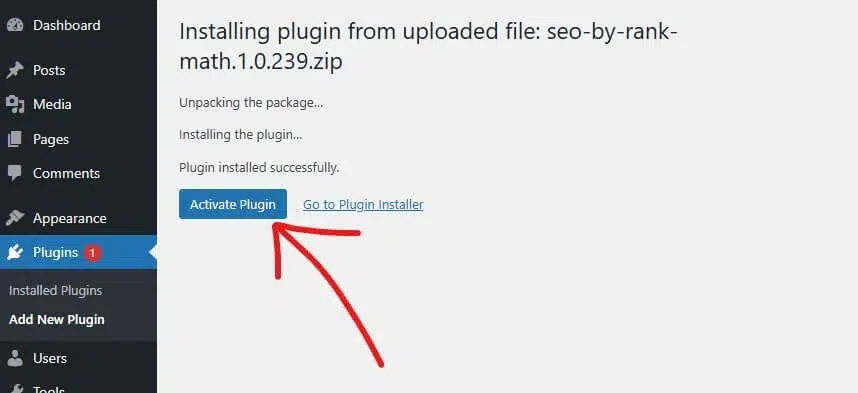
When the installation process is complete, you need to click on the Activate button.
After activating the plugin, the Rank Math AI Link Genius features will be enabled automatically.
Rank Math AI Link Genius Dashboard Overview
The Link Genius dashboard gives a clear overview of your website’s internal link health. I can quickly see working links, broken links, redirects, and other link issues in one place.
It also shows a visual breakdown of link status, which helps me understand my site structure better. Instead of checking links manually, everything is organized and easy to read.
From my experience, this dashboard helps me spot problems quickly and fix them faster. It saves time and keeps my internal linking clean and optimized.
How to Check all of your Internal & External Link

When you click on the Rank Math Link Genius features, you’ll see that all the links are set to Unchecked.
Then you simply click on the Crawl button to start crawling all of your site links,

Then this pop-up will appear. Now you have to follow all the instructions based on the screenshot. And lastly, click on the Start Audit button to start the process.
This process takes up to a few minutes based on the number of your website links.
Link Genius Post Link Opportunities & Related Post
After getting the Rank Math Link Genius Features, you’ve got the new features of Link Opportunities and related posts.
Here is how it works.

After opening any of your pages or posts, you have to click on the Rank Math Icon to get the Rank Math features.

Then you have to scroll down and find the feature called Link opportunities and expand it.
Now you have to click on the generate button to find all of your Link opportunities for this post.

Then Rank Math will find all the link opportunities for this post.
Now you just need to click on it to add the link to your post.

The next feature is Related post. To enable Related posts, you have to enable it, then click on the Generate button to find related posts.

Then, within a second, a lot of related posts will appear.
Now you just have to click on the insert button to insert a related post into your article.
Rank Math AI Link Tutorial
Rank Math AI Link Genius offers 5 different features, such as Overview, Post, Link, Bulk Update, and Keyword Maps.
Let’s explain all the features on by one.
Overview
The Overview section gives a quick summary of your internal link health. I can see how many links are working, broken, redirected, or blocked in one place.
It also shows unchecked links and marked safe links, which helps me understand what still needs attention. This makes it easy to track issues without digging into each page.
The status distribution chart gives a clear visual breakdown of link types. I can quickly see how many links are successful, blocked, or unchecked.
There’s also a link health section that highlights problems like broken links. This helps me fix issues faster and keep my internal linking clean.
Post

Once you go to the Post tab, then 3 additional tabs will open: All posts, Orphan Posts, and With incoming links.
On this page, I can see all my posts and pages with their internal linking data. It shows internal links, external links, incoming links, and SEO score for each post.
This helps me quickly find pages with no internal links or poor SEO score. Instead of checking manually, everything is listed in one place.
I usually use this to improve weak posts by adding internal links. This made my content more connected and improved my SEO over time.

On this page, I can see all orphan posts that don’t have any internal links pointing to them. These are pages that search engines and users may not easily find.
I use this to quickly identify which posts need internal links. It helps me connect those pages with other content on my site.
I can also add external links to these pages to improve their visibility. This makes the content more useful and improves overall SEO.

This section shows posts that already have incoming internal links from other pages. It helps me see which content is well connected inside my site.
I use this to understand which pages are getting more link value and attention. It also helps me improve other posts that are still weak.
This way, I can balance my internal linking and make sure important pages perform better in search results.
Links

The Links tab shows all internal and external links across my website in one place. I can see the source page, destination URL, anchor text, and link type clearly.
It also lets me filter links by status like success, broken, redirects, or blocked. This makes it easy to find issues without checking each post manually.
I can edit, recheck, or remove any link directly from this page. This helps me manage links faster and keep my site clean and optimized.
To edit any of the links, just you’ve to hover on it, then a lot of options appear. Now you have to click on edit.

The Edit Link feature lets me quickly update any link without opening the post. I can change the URL and anchor text directly from the dashboard.
I can also add nofollow or open the link in a new tab with one click. This saves time and makes link management much easier.
Bulk Update
The Bulk Update feature helps you edit multiple links across your site in one go. You can filter links by type, nofollow status, anchor type, post type, or even publish date.
Once filtered, you can update URLs, anchor texts, or attributes instantly. This saves hours of manual work, especially when migrating links or fixing site-wide issues.
Let me show you how you can use these features.

When you come to the first step, you don’t need to do anything. Just click on the next button to go to the next step.

In this step, you need to define exactly what changes you want to apply to your links. First, choose what to update—either anchor text, URLs, or both—based on your goal.
Then set the matching rules, like “Exact Match,” and enter the old text or URL in the “Find” field. After that, add your new replacement in the “Replace With” field, and adjust options like case sensitivity if needed before moving forward.

After coming to this last step, just click on the Preview Changes button to finish this Bulk Update process.
Remember: This process can take up to a few minutes.
Keyword Maps
The Keyword Maps feature lets you create reusable internal linking rules based on specific keywords. You can assign a target URL, and Rank Math will automatically link matching keywords across your content.
It also supports keyword variations and auto-linking, so you can scale internal linking without manual effort. This makes it easier to improve SEO structure and distribute link authority across your site.

To create a keyword map, you have to click on the Create Keyword Maps Button.

In this step, you need to create a new keyword map by defining the main keyword and its target URL. Start by adding a name for your map, then enter the URL where you want all matching keywords to link.
Next, configure rules like case sensitivity, auto-linking, and how many times the link can appear per post. After that, add keyword variations manually or generate them with AI, so Rank Math can automatically create internal links across your content.

After creating your keyword maps, just click on the Preview & Execute to see your keyword maps.

In this step, you are reviewing all the changes before applying them to your site. It shows how your anchor text and URLs will look after the update, so you can clearly compare the “before” and “after.”
You can select or deselect specific links, check how many posts are affected, and confirm everything looks correct. Once satisfied, simply click Apply Changes to update all selected links instantly.
Why You Should Test Rank Math Link Genius?
Rank Math Link Genius makes internal linking fast, simple, and scalable without manual effort. Instead of adding links one by one, it automatically finds linking opportunities across your content and suggests smart placements.
It also helps fix common SEO issues like orphan posts, weak link structure, and poor link distribution. With features like keyword-based auto linking, bulk updates, link tracking, and detailed link analytics, you can optimize your site much faster.
Another big advantage is control and flexibility, since you can edit links, manage anchor text, filter link types, and monitor link health in one place. This makes it a powerful tool for improving SEO performance while saving time.
FAQ
It’s an internal linking tool that automatically finds and adds relevant links across your WordPress site.
Yes, it saves time and scales your linking strategy, while still giving you full control.
Yes, you can edit URLs, anchor text, and attributes directly from the dashboard.
Yes, it identifies orphan posts and suggests internal links to improve their visibility.
It lets you auto-link specific keywords to target URLs across your content.
Yes, the bulk update feature allows you to change links site-wide in seconds.